


Our Knowledge Base Has Moved
The New Page landing page for the Knowledge Base is https://product.korbyt.com/help
The new version of this specific article can be found at: https://product.korbyt.com/help/articles/1312840-using-the-korbyt-anywhere-web-interface
Please update any of your bookmarks to the new Knowledge Base
For assistance on using the new Knowledge Base, we have a Welcome to the New Korbyt Knowledge Base guide
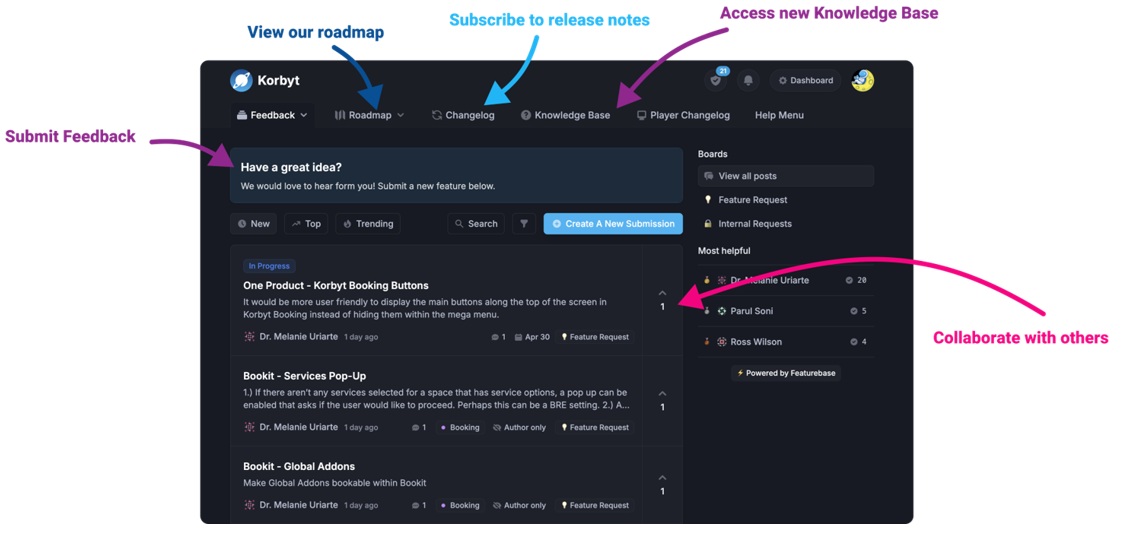
The new Korbyt Product Page also has sections for submitting feedback on system improvements, a view of our Roadmap of upcoming enhancements, and a change log of all updates.
After logging into the Korbyt Anywhere platform, you’ll be automatically taken to your personalized news feed. You can create and publish posts directly to categories within your personalized news feed that are already approved or require post approval from an admin.
Before you can publish posts to the news feed via the Korbyt Anywhere mobile app, you must ensure that User Generated Posts has been enabled for your tenant. For more information about enabling User Generated Posts for your tenant, refer to Enabling User Generated Posts.
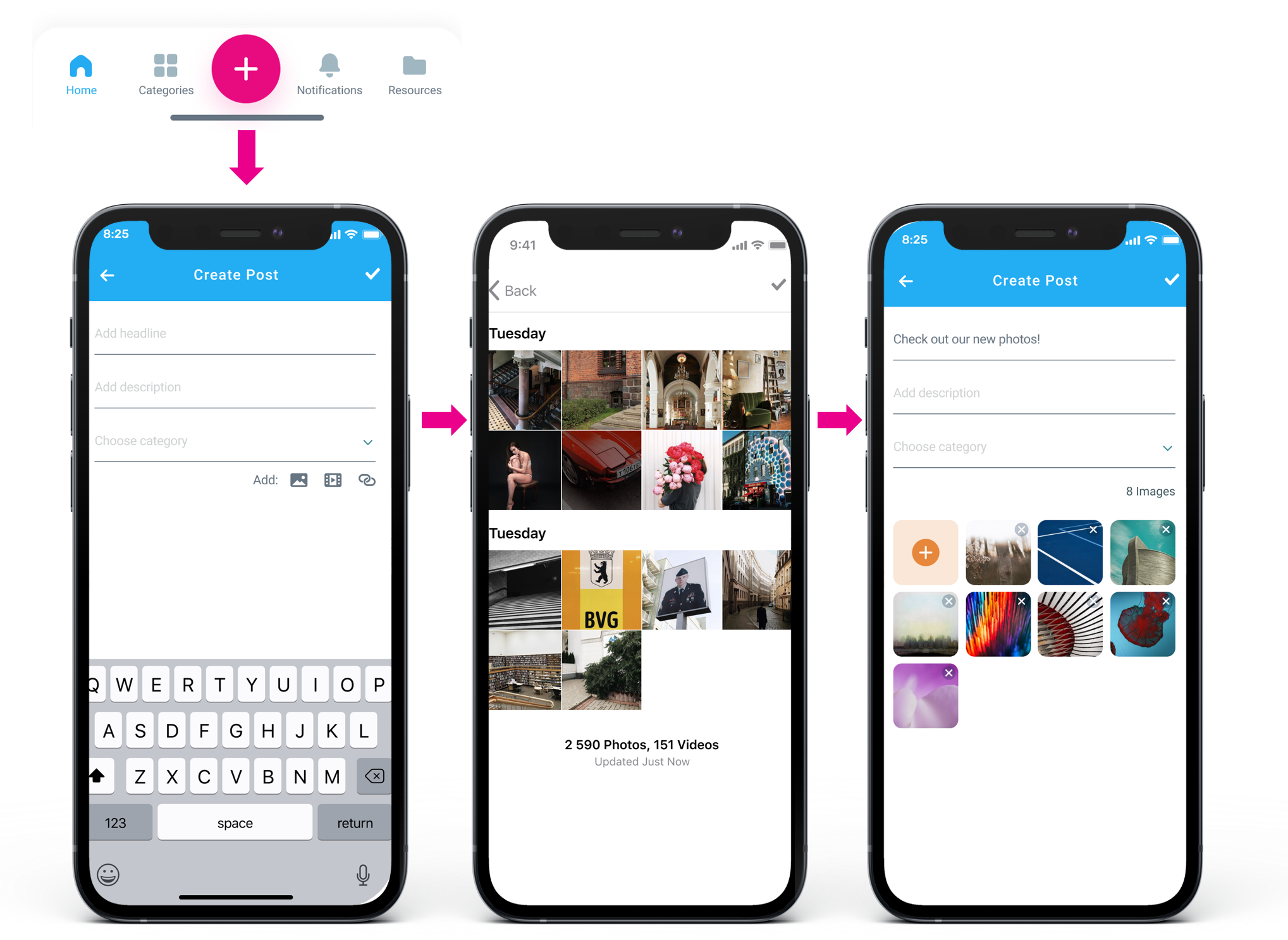
To create a new post via the Korbyt Anywhere mobile app:
- Click the + button at the bottom of the screen.
When using the Korbyt Anywhere mobile app, you don’t have to specify a post type since it’s automatically determined based on your content. - Enter a Headline and Description.
- Select a Category.
The CMS administrator determines which categories allow for user generated content. - Add images, videos, and links to your post if necessary.
NOTE: Be sure to adhere to our asset specifications. For more information, refer to Asset Specifications. - For URL Links, format all as follows: https://www.website.com making sure to include the “https://”
- Links should also be limited to 25 characters.
- If your URL exceeds this limit, you use https://tinyurl.com to shorten it.
