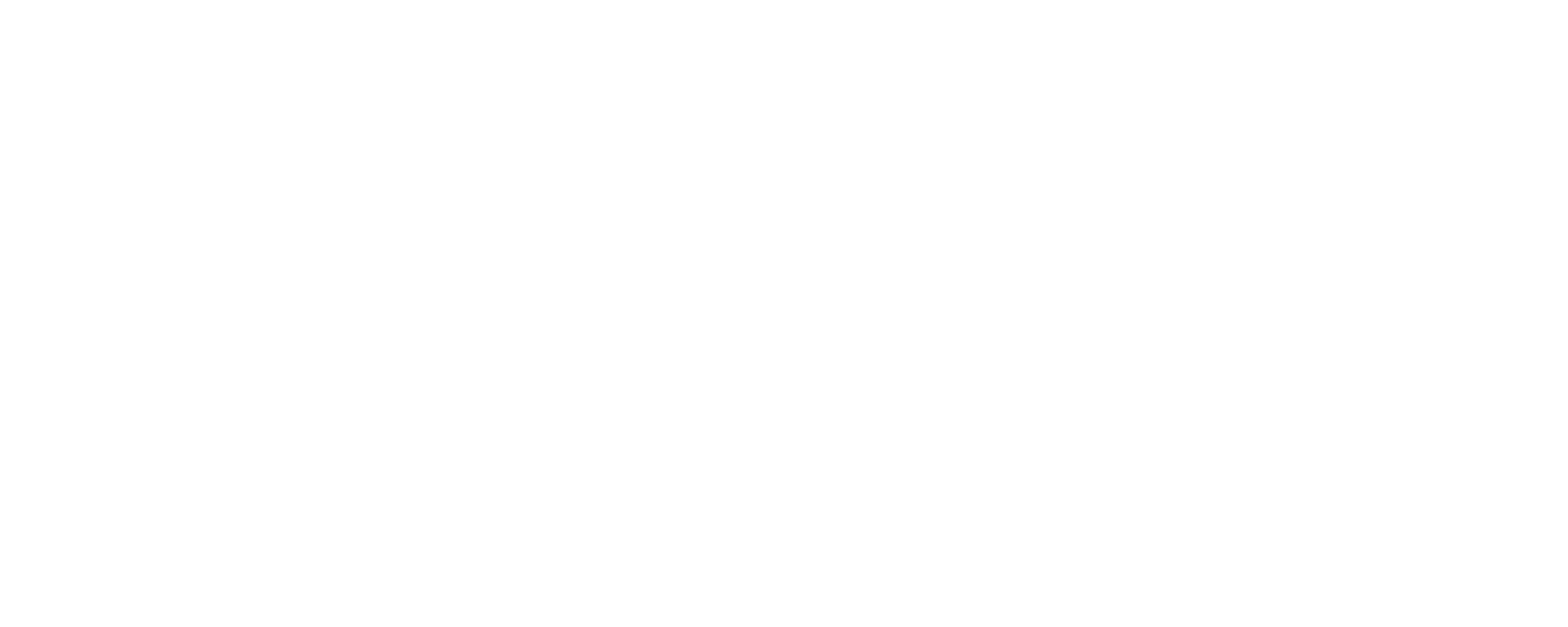


Our Knowledge Base Has Moved
The New Page landing page for the Knowledge Base is https://product.korbyt.com/help
The new version of this specific article can be found at: https://product.korbyt.com/help/articles/6209702-player-push-for-content-assignment
Please update any of your bookmarks to the new Knowledge Base
For assistance on using the new Knowledge Base, we have a Welcome to the New Korbyt Knowledge Base guide
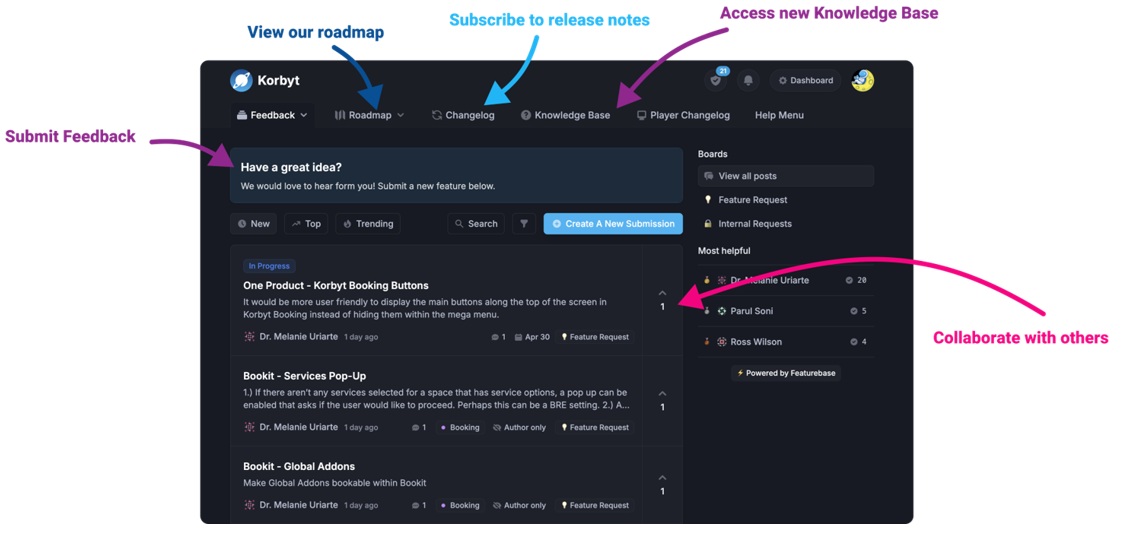
The new Korbyt Product Page also has sections for submitting feedback on system improvements, a view of our Roadmap of upcoming enhancements, and a change log of all updates.
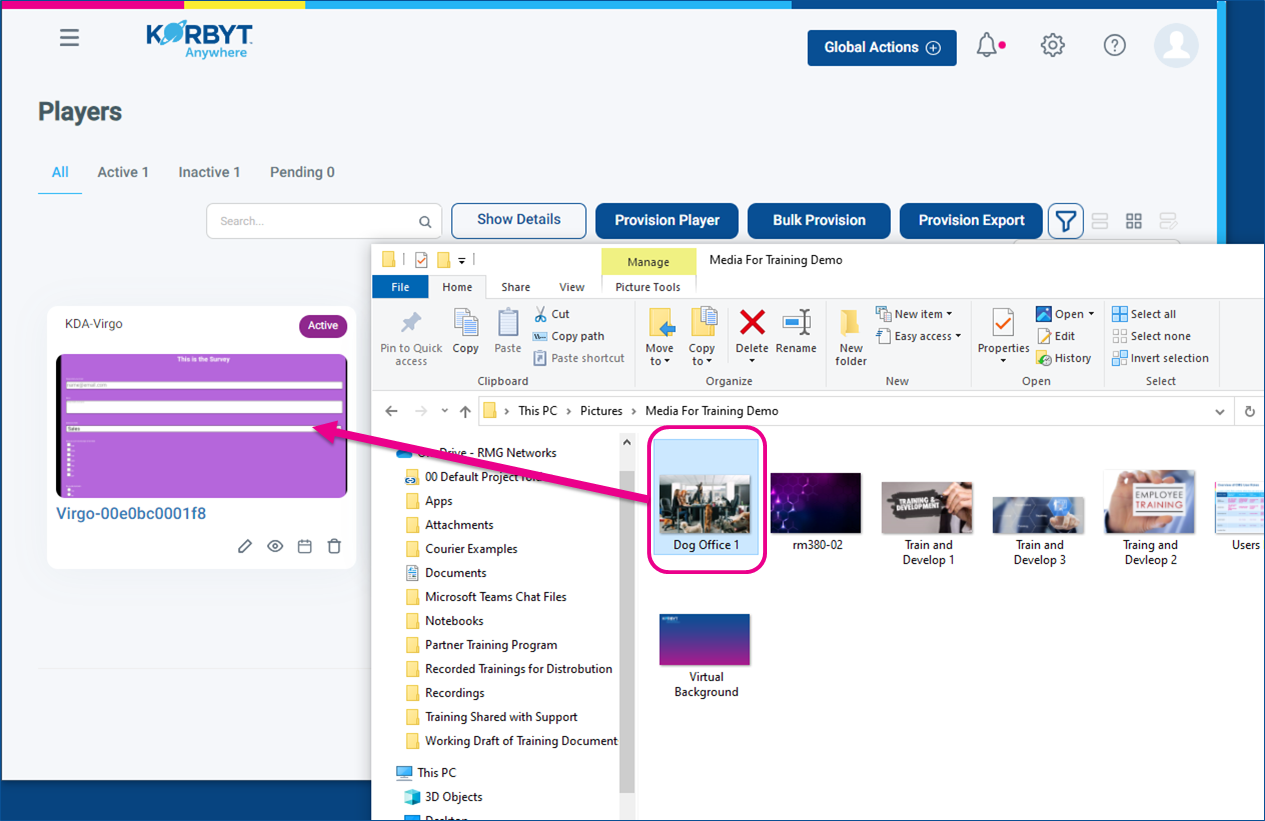
It is possible to assign a single piece of content to a player in Korbyt by dragging and dropping the media item from your computer’s file explorer to the player’s card view on the Player Screen.
- The content pushed in this way will be 1 media item (image or video)
- You can assign start and end dates to the item
- The content will be assigned with the equivalent of a 0-second time on a playlist,
- meaning it will hold the screen for the whole time it is programmed
To assign content by Player Push
- In your Korbyt Tenant, navigate to the Player Screen
- Mega Menu > Players
- If needed shift your view to Card View of the players
- Using the view selection in the upper right
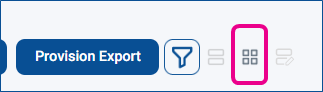
- Using the view selection in the upper right
- Open the file explorer window on your computer and drag and drop the item to the player
- When this is done, there will be a pop-up where you can set a start and end date/times
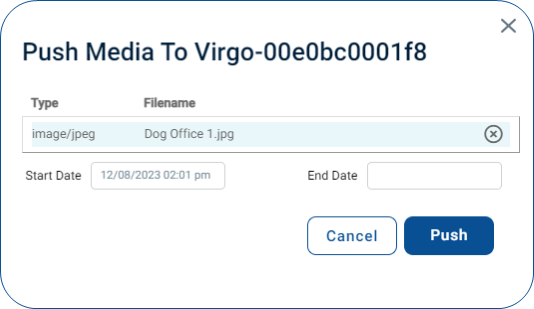
- During the times the content is scheduled the new items will be the only item to play
- This assigns the content to the player directly (no playlist)
- Content assigned through Player Push can be seen in the Edit Player screen, under Content Assigned
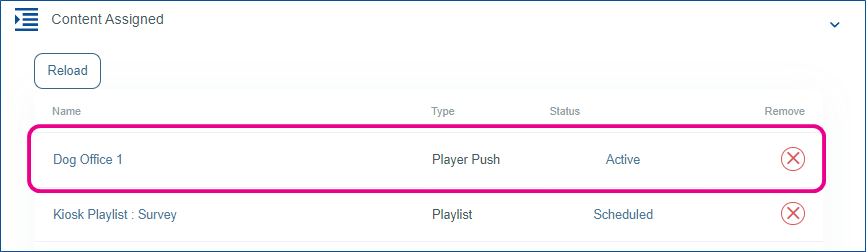
- It can be removed from the player by clicking the red x
