


Our Knowledge Base Has Moved
The New Page landing page for the Knowledge Base is https://product.korbyt.com/help
The new version of this specific article can be found at: https://product.korbyt.com/help/articles/3583499-sending-notifications-to-specific-end-users
Please update any of your bookmarks to the new Knowledge Base
For assistance on using the new Knowledge Base, we have a Welcome to the New Korbyt Knowledge Base guide
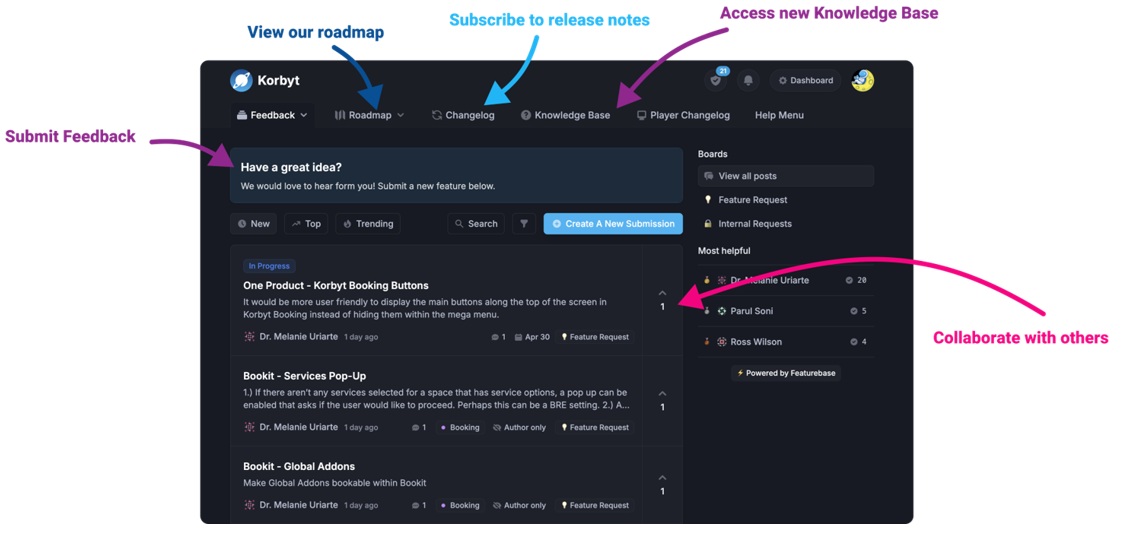
The new Korbyt Product Page also has sections for submitting feedback on system improvements, a view of our Roadmap of upcoming enhancements, and a change log of all updates.
This article will demonstrate how to create and send Desktop or Mobile & Web notifications.
If Mobile and Web based, the user will recieve the notification on their mobile device based on their mobile device notification settings.
- Open the Mega Menu
 in the upper left corner
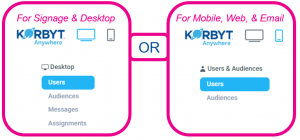
 - Select Users underneath either Desktop or Users & Audiences (depening on being in either the Digital Signage or Mobile & Web side of your Korbyt Tenant)
- Find the User Name in the list (you can also type the name into the search field)
Once you find the users click on the Notification action

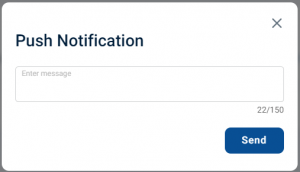
- Enter the message to be sent, and click Send
- A notification will appear after the message is sent.
- The user will instantly receive the message in the Desktop(InView) Application, the Korbyt Anywhere Mobile Application, and the Korbyt Anywhere Website (as appropriate for the user and your subscribed services)
The message appearing as a Push notification on a mobile device is controlled by the mobile devices notification settings
