

Our Knowledge Base Has Moved
The New Page landing page for the Knowledge Base is https://product.korbyt.com/help
Guides for the Elements can be found at: https://product.korbyt.com/help/articles/6713513-layout-and-message-builder-elements
Please update any of your bookmarks to the new Knowledge Base
For assistance on using the new Knowledge Base, we have a Welcome to the New Korbyt Knowledge Base guide
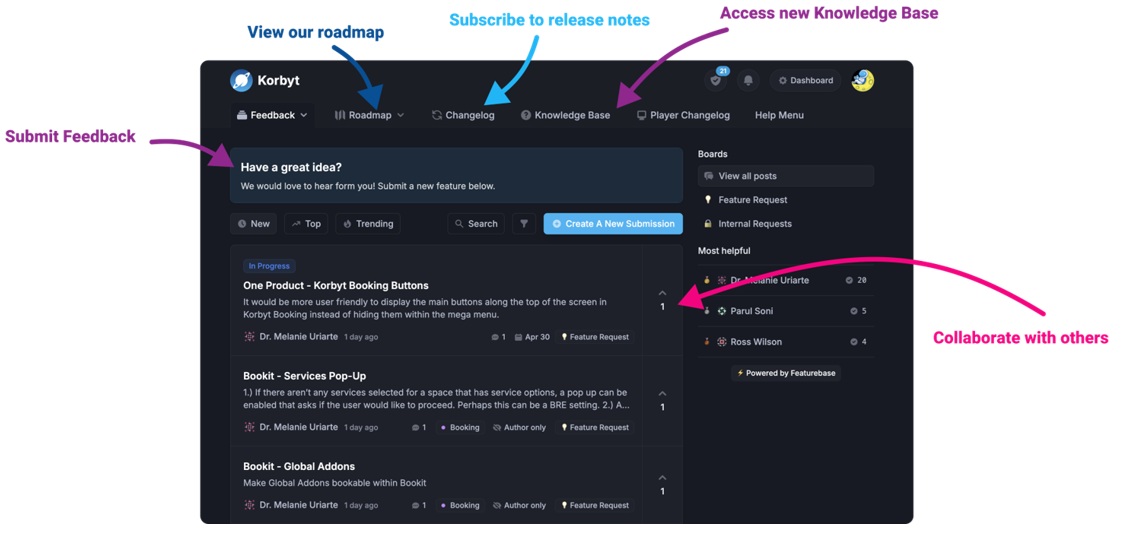
The new Korbyt Product Page also has sections for submitting feedback on system improvements, a view of our Roadmap of upcoming enhancements, and a change log of all updates.
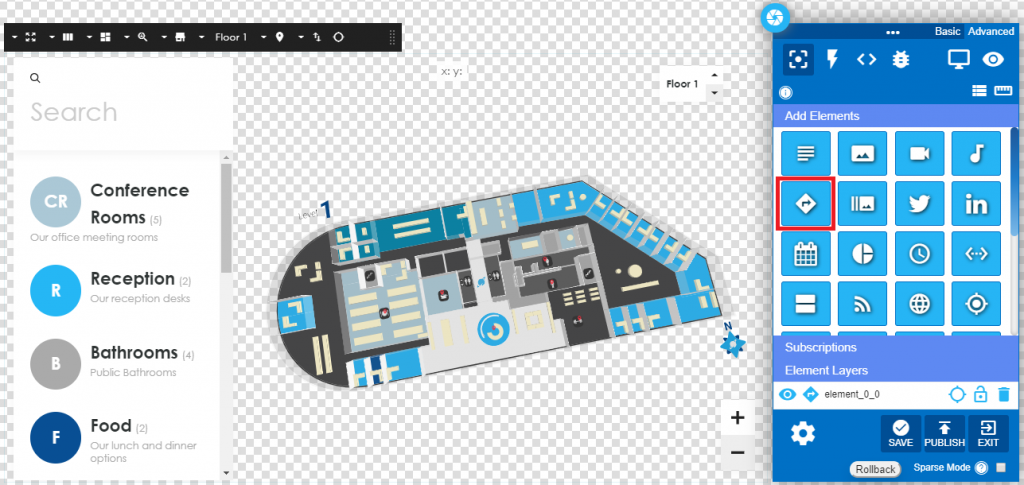
The Map Element Adds a room, floor, or building map that is within Korbyt Wayfinding & Space Management.
The Map files have been built in Adobe Illustrator and imported into the Media Manager as SVG files.

Use the following steps to use the Map Element to edit a map for display.
- Click and drag the Map element into the layout. A pre-loaded map with 2 floor levels will display.
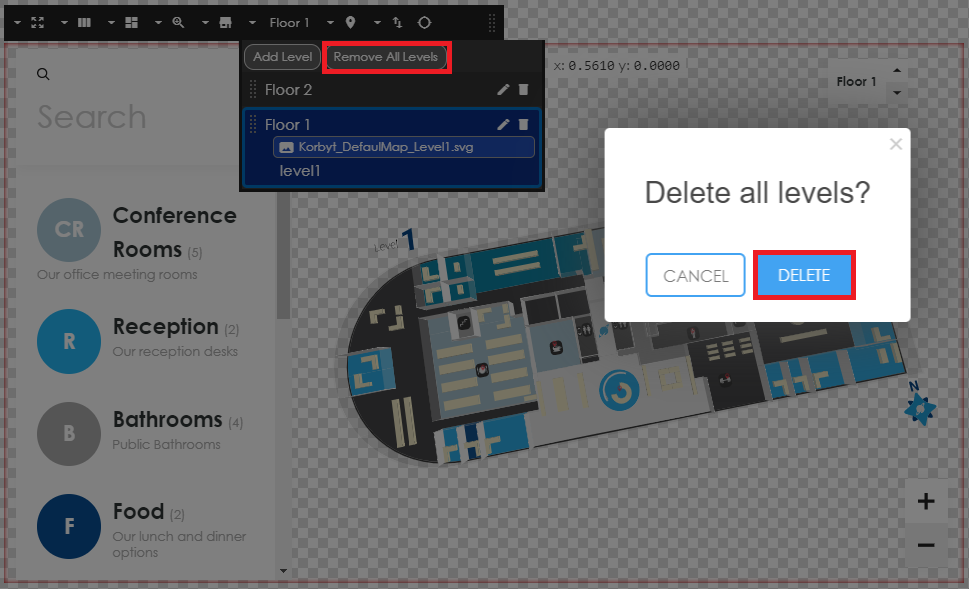
- To remove the pre-loaded map click on the ‘Remove All Levels” button.
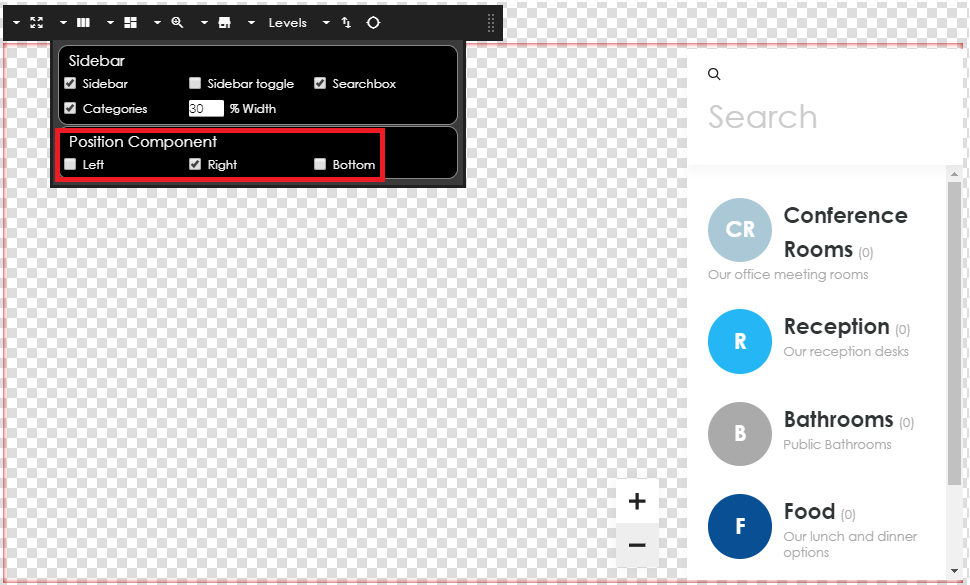
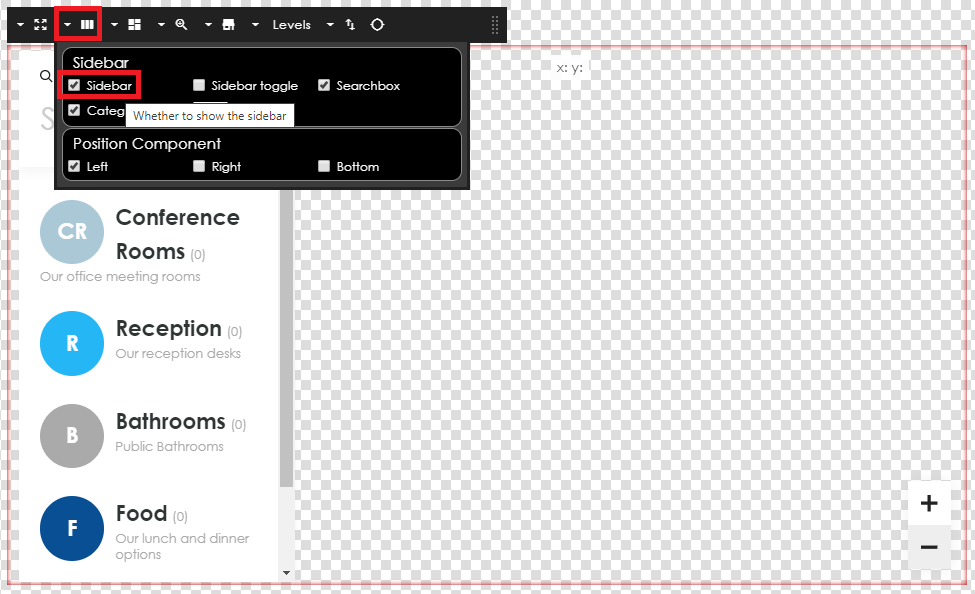
- Position the side bar to Left, Right or Center if you wish to continue to display the sidebar.
- Add or Remove Categories to the sidebar by selecting the Categories icon. Pre-added Categories include Amenities, Food, Bathrooms, Reception and Conference Rooms.
- The individual categories can be edited to change the name by clicking the edit button. Also the button color and font style can be edited.
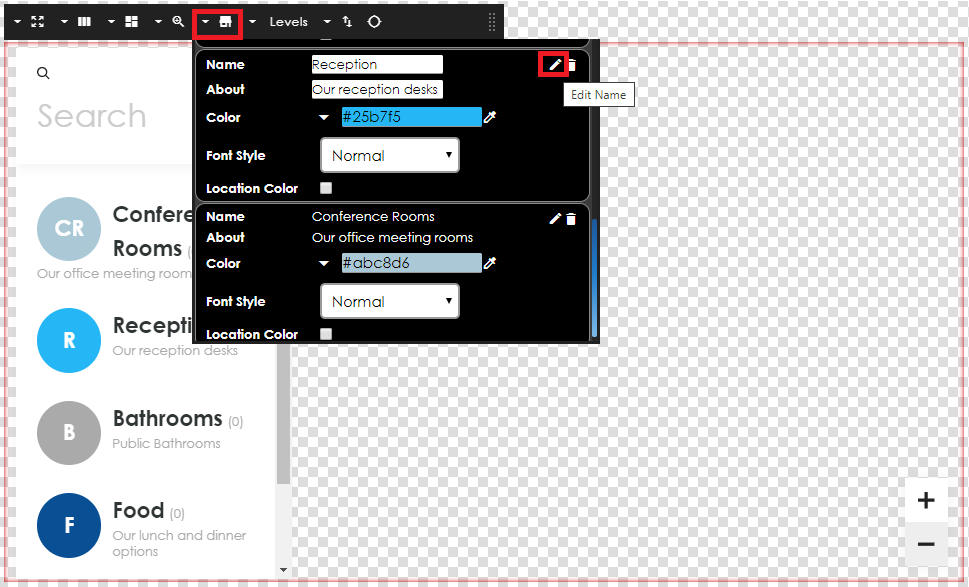
- Click on the UI icon to edit the User Interface.
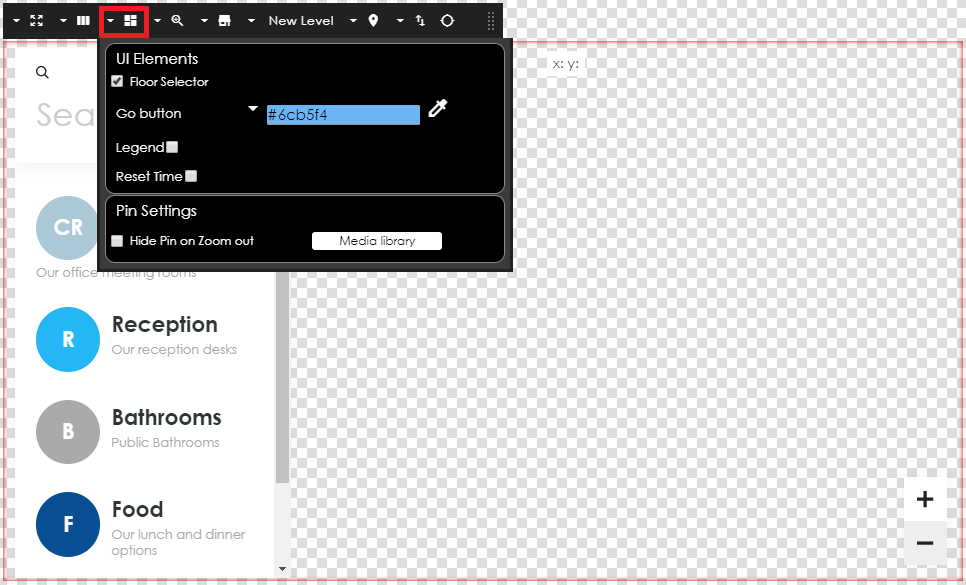
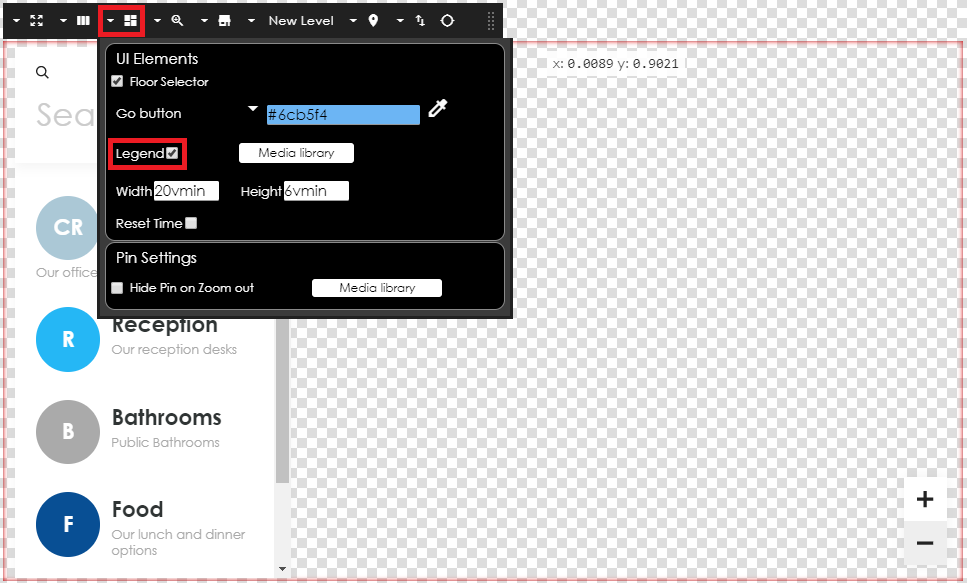
- Select from the UI Legend, Reset Time and Pin Settings (Hide Pin on Zoom out) options.
- To remove the sidebar click on the sidebar drop-down and un-check Sidebar.
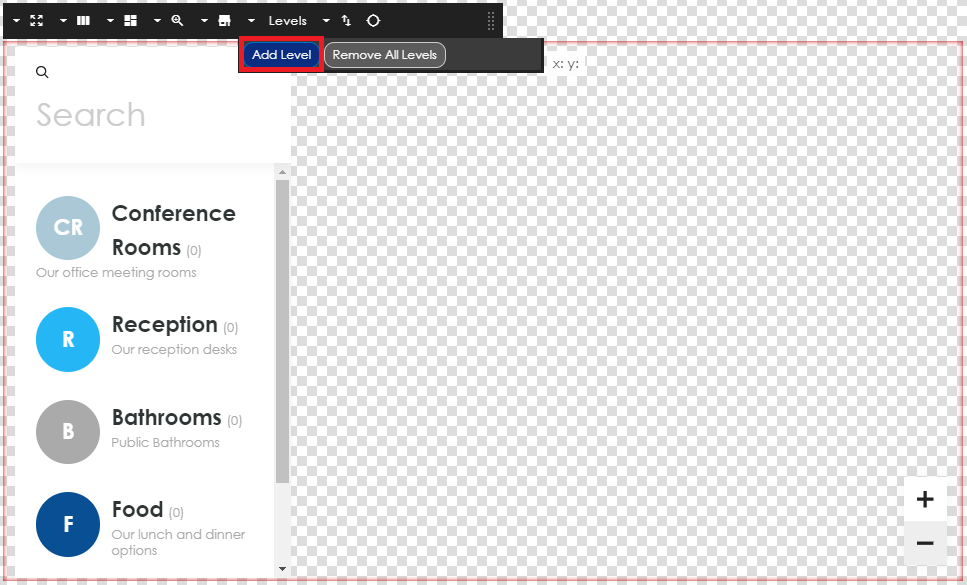
- To add a new map.svg file from the Media Library select the Levels button and click the ‘Add Level’ button.
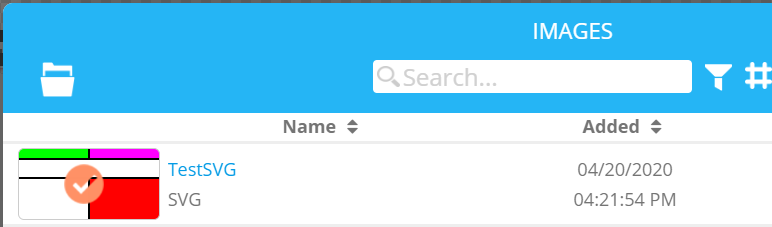
- Select the new map from the Media Library and save.
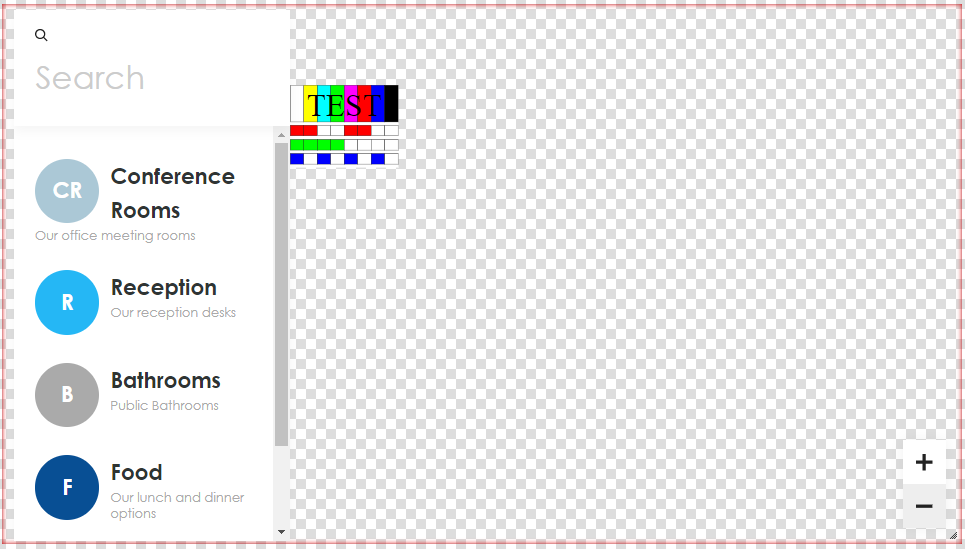
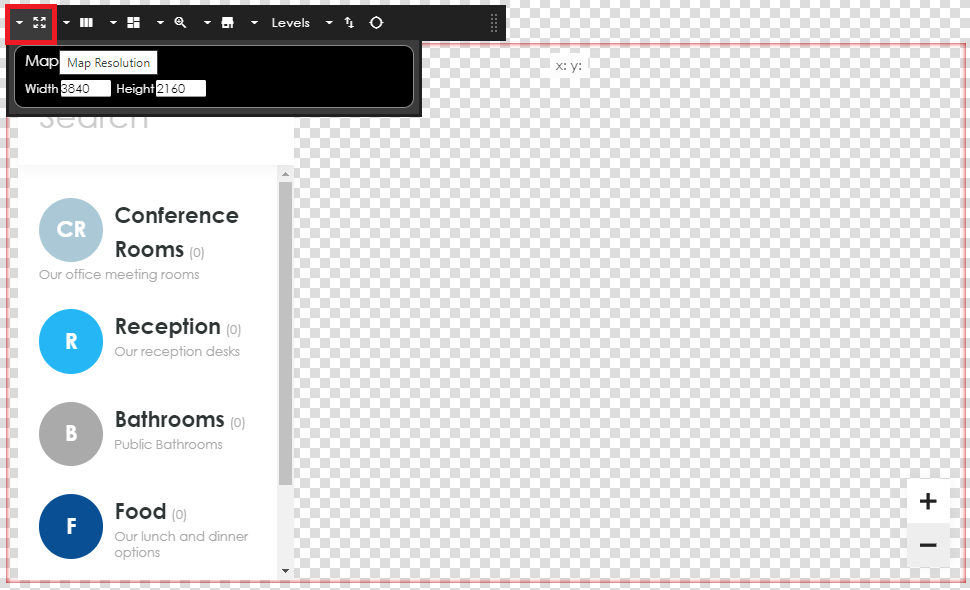
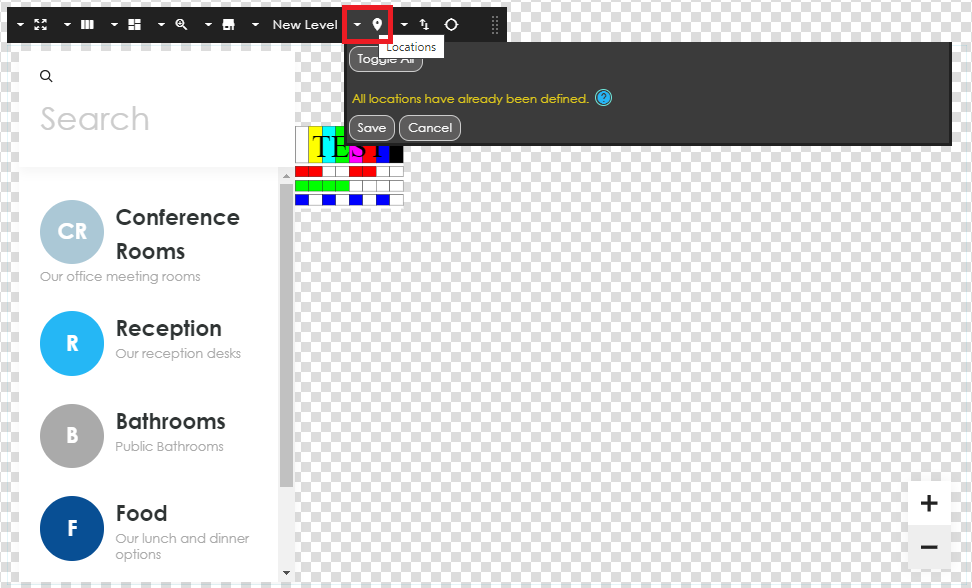
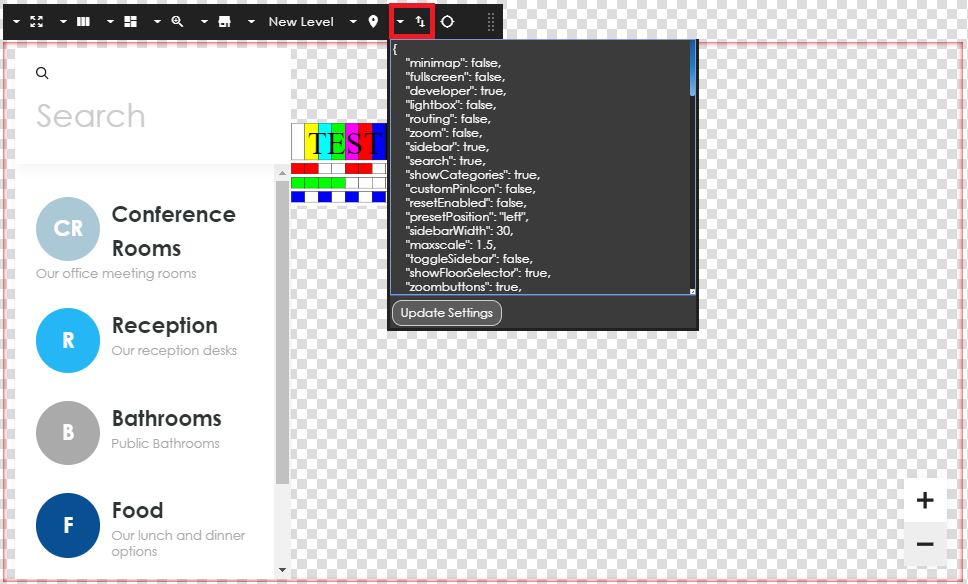
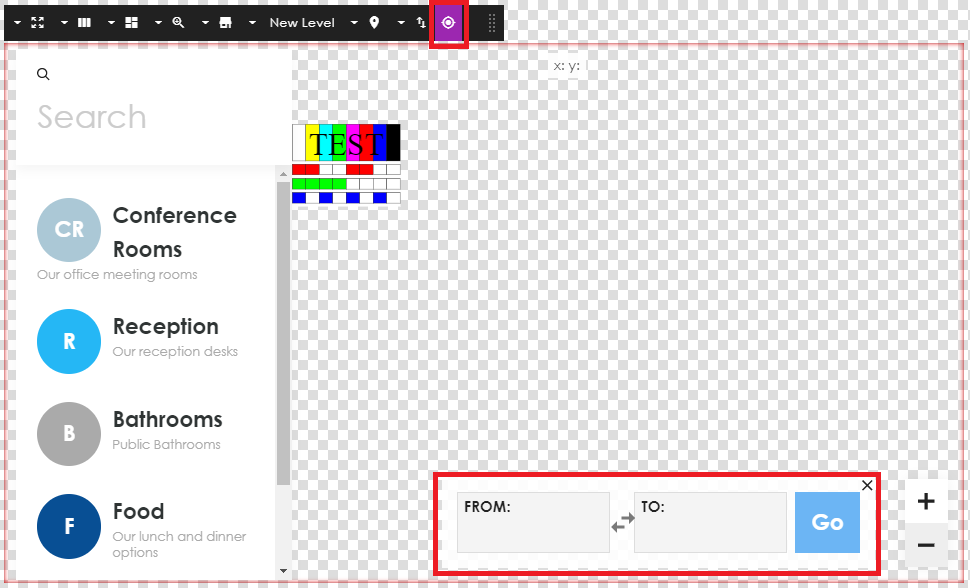
- Other actions include Resolution, Zoom Options, toggle on/off Locations, review the raw settings and add Way Finding.