

Our Knowledge Base Has Moved
The New Page landing page for the Knowledge Base is https://product.korbyt.com/help
Guides for the Elements can be found at: https://product.korbyt.com/help/articles/6713513-layout-and-message-builder-elements
Please update any of your bookmarks to the new Knowledge Base
For assistance on using the new Knowledge Base, we have a Welcome to the New Korbyt Knowledge Base guide
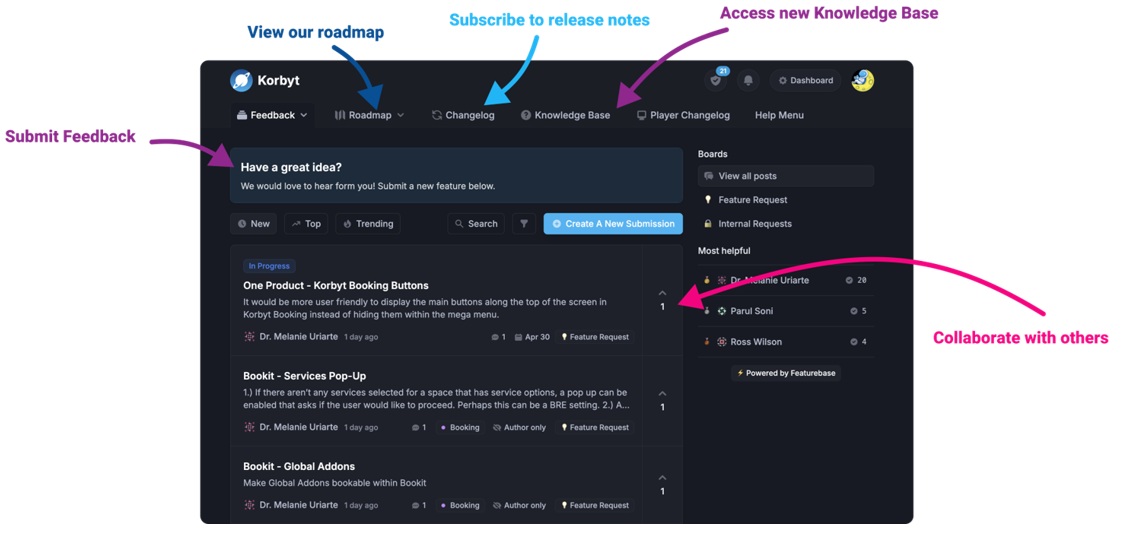
The new Korbyt Product Page also has sections for submitting feedback on system improvements, a view of our Roadmap of upcoming enhancements, and a change log of all updates.
Easily add RSS content to a Korbyt layout by following these steps:
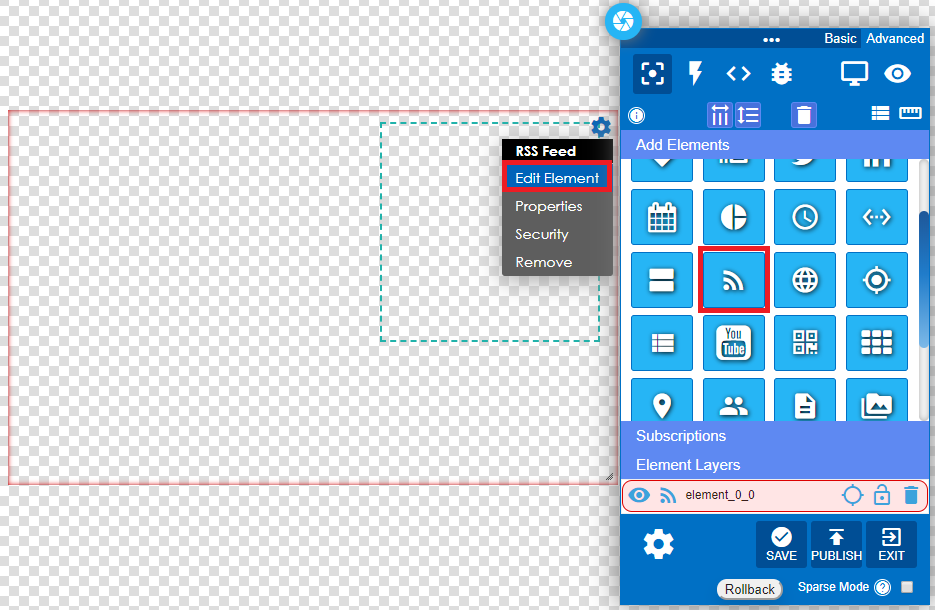
- From within the layout, click and drag the RSS icon into the layout area and then select “Edit Element.”
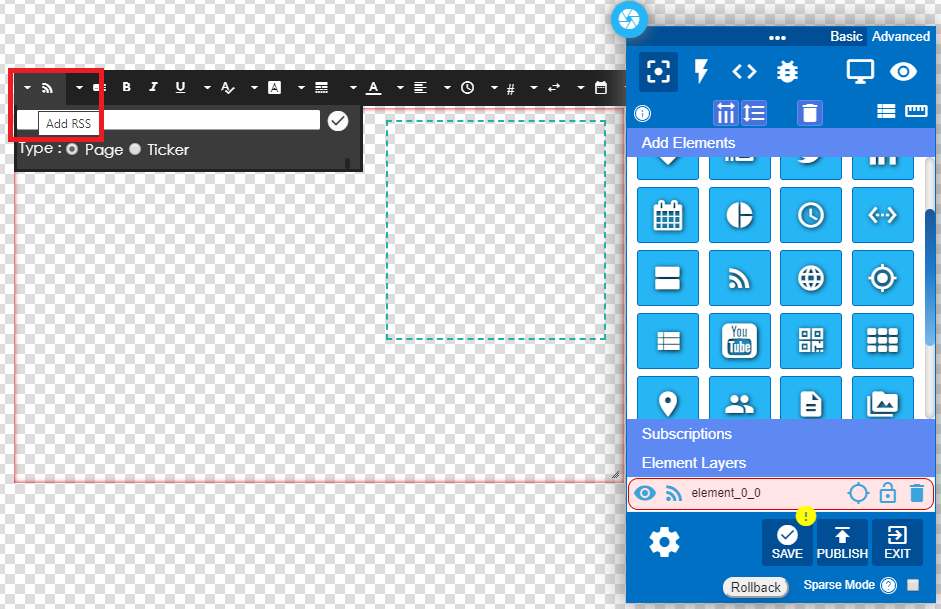
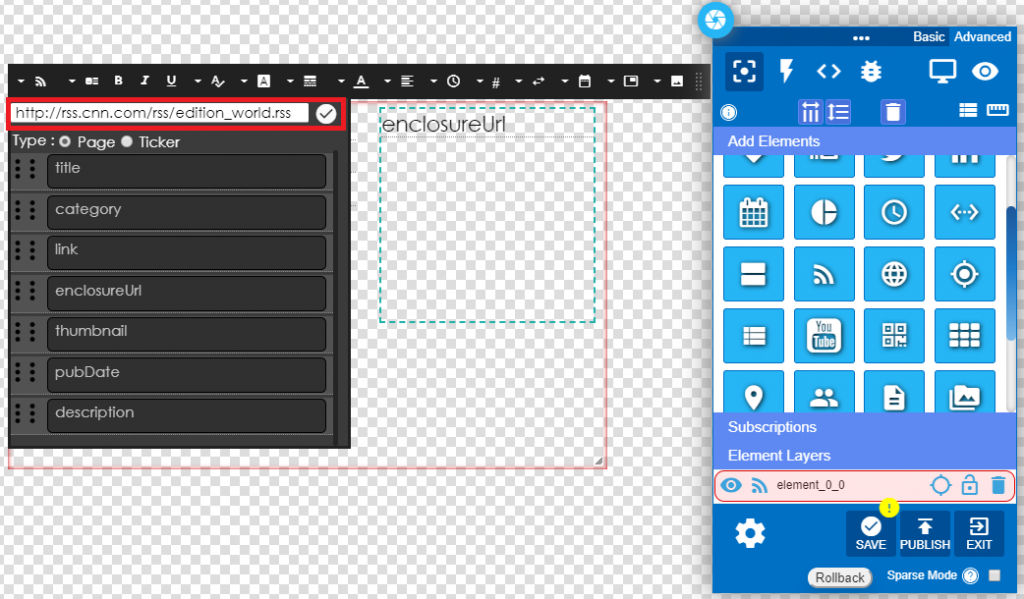
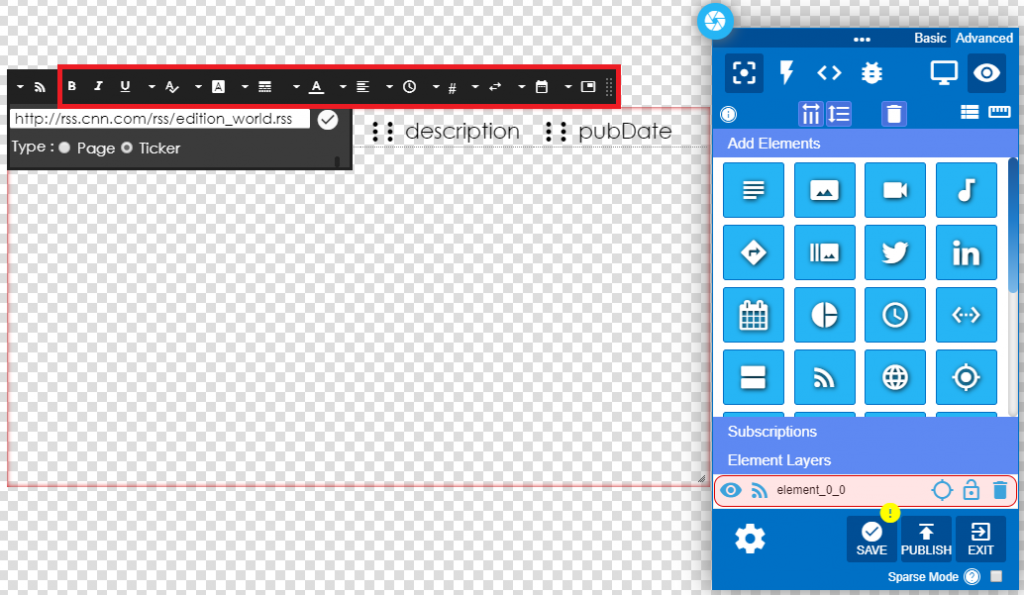
- Click the “Add RSS” button, add the RSS URL in the window, then click on the verification check and select “Page” or “Ticker.”
- For a page style, select “Page” and then choose from available layout options such as title, category and others.
Once layout options are selected the “enclosure URL” box displays the RSS image if available.
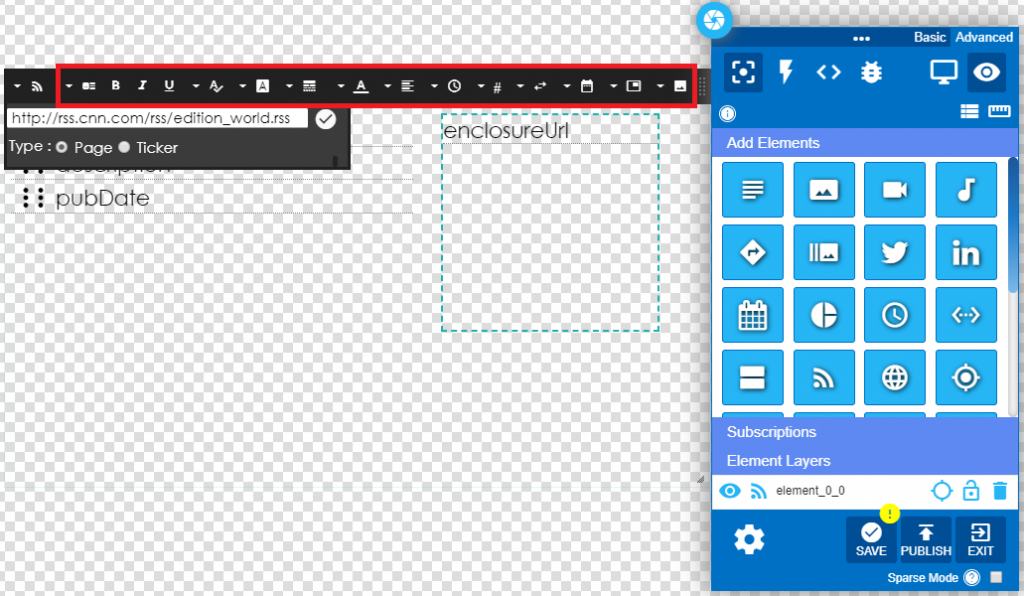
- Format page text by selecting standard text options like bold, italic, underline, font size and family from the top toolbar.
Other format options include text color, text alignment, story duration time, image resize and others.
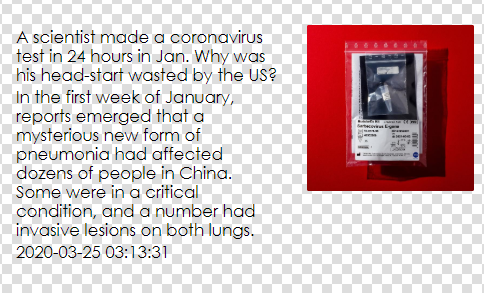
- Click the “Preview” icon to view the RSS content. Find an example of the page style below.
- For ticker style, display options are limited to text format.
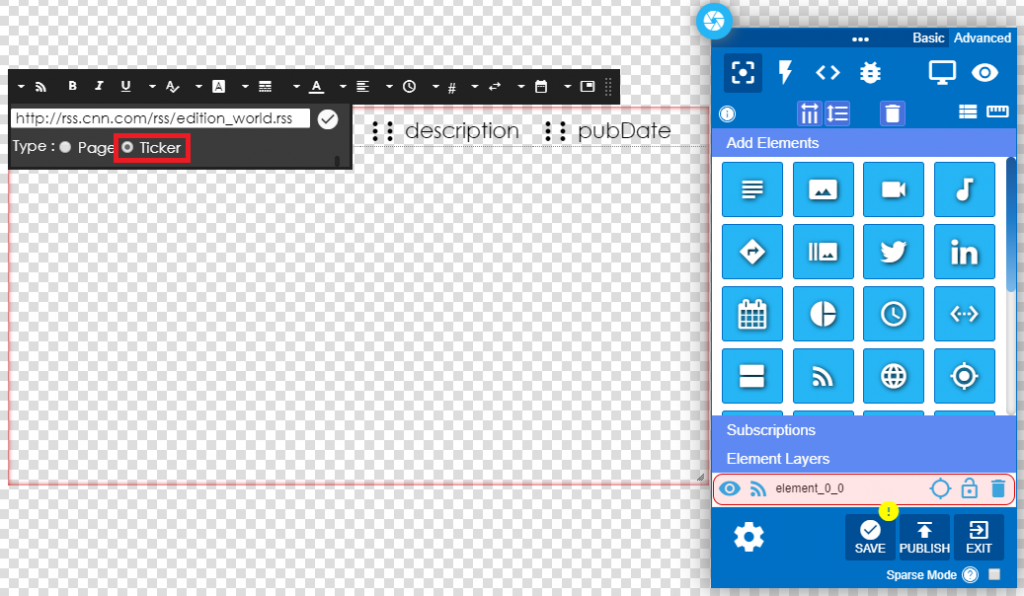
- Format ticker text by selecting standard text options like bold, italic, underline, font size and family.
Format options also include text color, text alignment, scroll speed but there are no story images.
- Click the “Preview” icon to view the RSS ticker content. Find an example of the ticker style below.