

Our Knowledge Base Has Moved
The New Page landing page for the Knowledge Base is https://product.korbyt.com/help
The new version of this specific article can be found at: https://product.korbyt.com/help/articles/0043013-configure-a-player-to-connect-through-a-proxy
Please update any of your bookmarks to the new Knowledge Base
For assistance on using the new Knowledge Base, we have a Welcome to the New Korbyt Knowledge Base guide
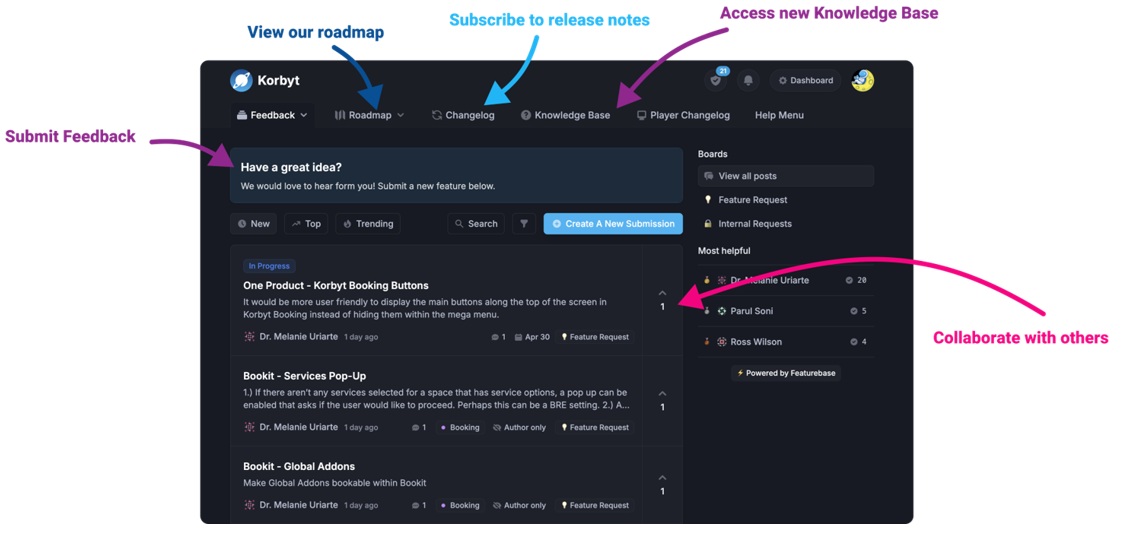
The new Korbyt Product Page also has sections for submitting feedback on system improvements, a view of our Roadmap of upcoming enhancements, and a change log of all updates.
Configuring a proxy on RMG KDA players
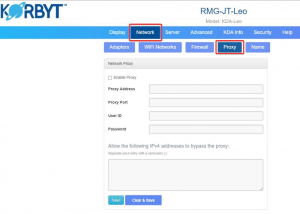
- Access player’s config page by entering the player’s IP address into a web browser that is on the same network as the player.
- If you receive a cert error screen, ignore and continue past it.
- Login to the player config page with the admin login.
- Once in the player’s config page; go to “Network” tab, then “Proxy”.
- Enter your company’s proxy info and then click the “Save” button.
Configuring a proxy on BrightSign players
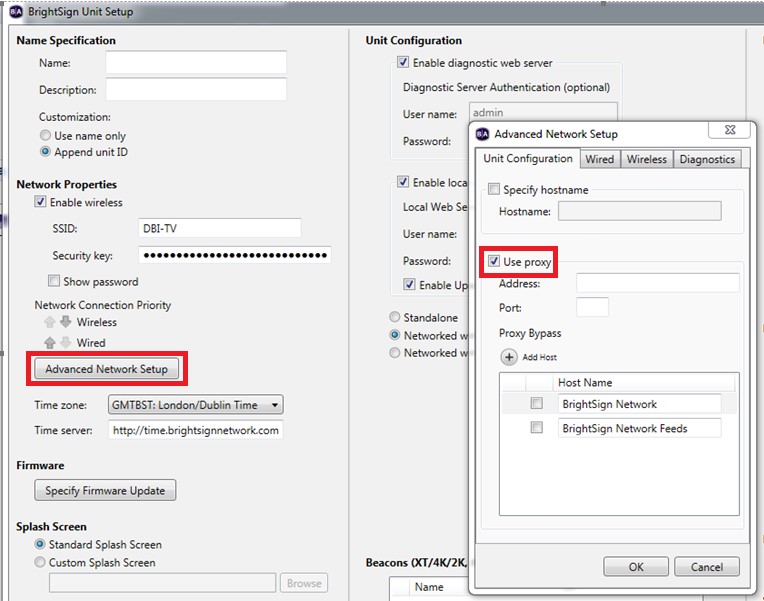
- You can configure proxy for BrightSign players from either the BrightSign cloud console or from the Bright Author application.
- BrightSign cloud console:
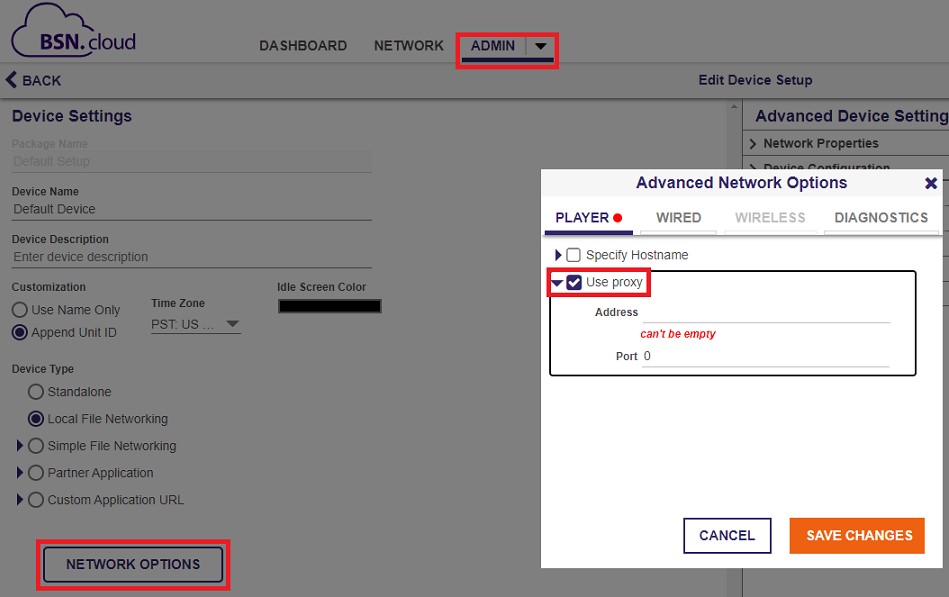
- Bright Author application:
Configuring a proxy on Chromebox players
- Connect a keyboard and mouse to the box.
- Type CTL+ALT+X to restart and then CTL+ALT+S to interrupt the player.
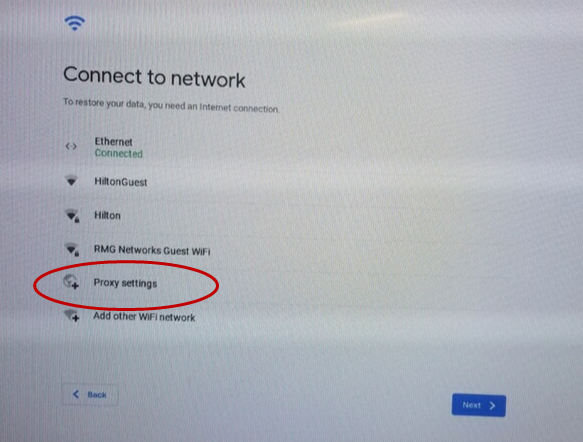
- Select the networks then “Proxy settings”
Configuring a proxy on Shield players
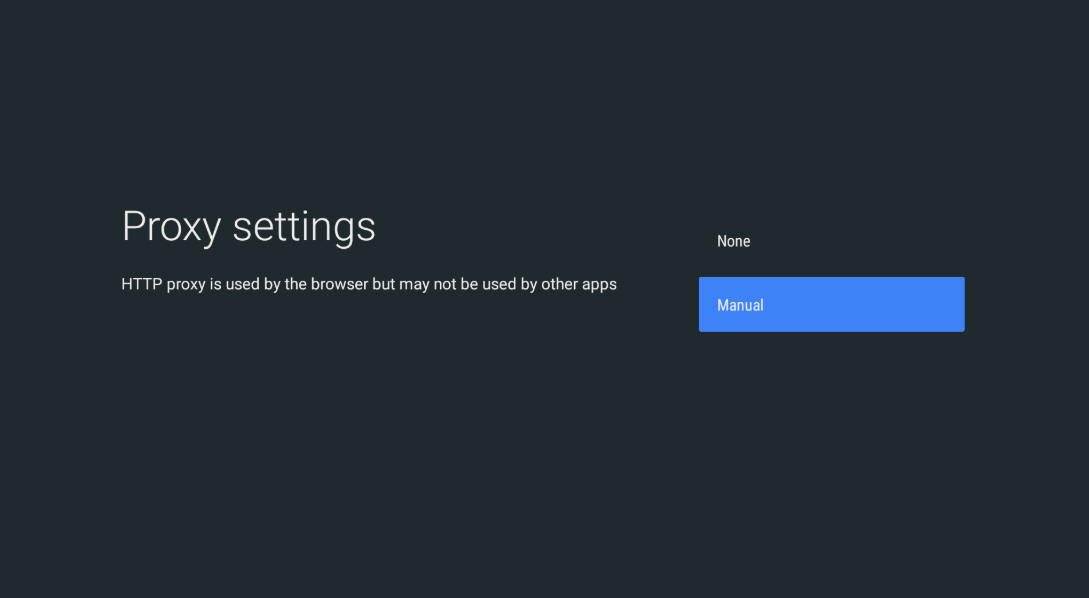
- Under settings select network then select Proxy