


Our Knowledge Base Has Moved
The New Page landing page for the Knowledge Base is https://product.korbyt.com/help
The new version of this specific article can be found at: https://product.korbyt.com/help/articles/5723613-rma-process-for-chromebox-via-aopen
Please update any of your bookmarks to the new Knowledge Base
For assistance on using the new Knowledge Base, we have a Welcome to the New Korbyt Knowledge Base guide
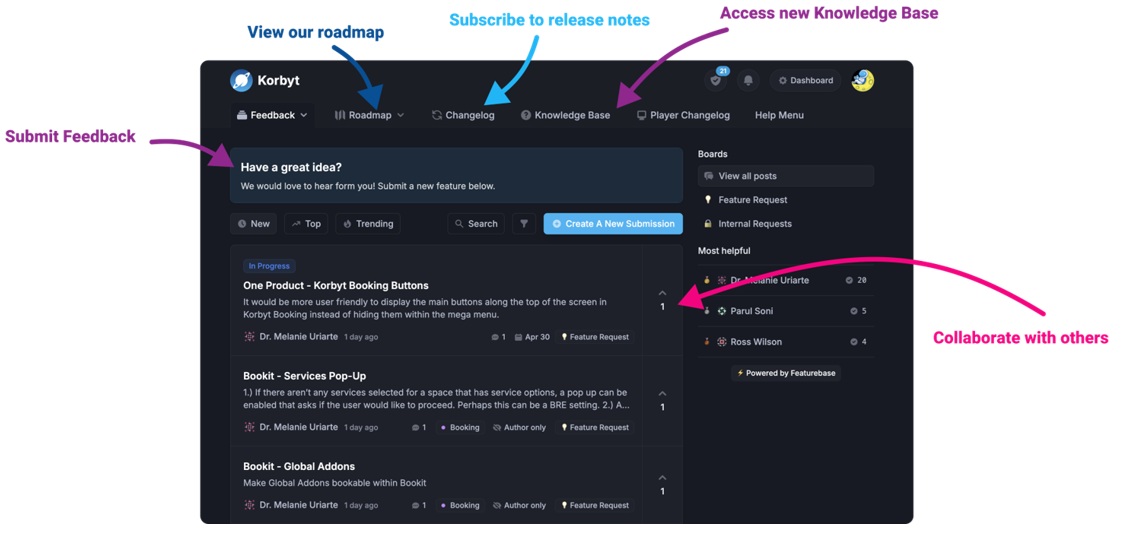
The new Korbyt Product Page also has sections for submitting feedback on system improvements, a view of our Roadmap of upcoming enhancements, and a change log of all updates.
The steps below must be follow to be able to generate an RMA with AOPEN for a Chromebox.
- Go to: https://www.aopen.com/US_en/index.html
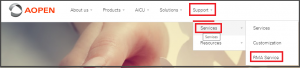
- Select the Support Tab, then Services, then RMA Service
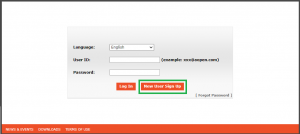
- On the new login page that opens, select “New User Sign up”
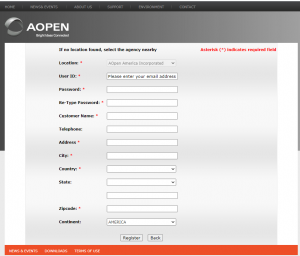
- Sign up for a new account by filling up the below required information
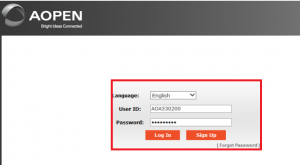
- Enter the credentials you just created: user ID and password, to login, just like the example below
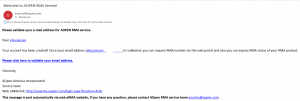
- An email will be sent to you by AOPEN for email confirmation. The login would only be valid until the email is validated by AOPEN:
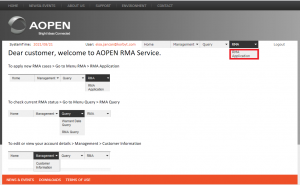
- Once logged in, the following window will appear. Under RMA select RMA Application.
- Fill the correct fields on the window below. Please note that if you have several addresses under the account, make sure the correct one is selected under the dropdown.
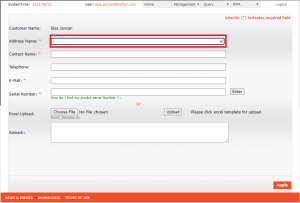
- Make sure the correct email is select, the RMA notification and shipping instructions will be sent to that address.
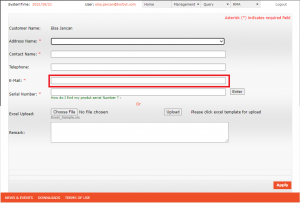
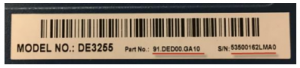
- Enter the Part number and Serial number as well. Fail descriptions is also required
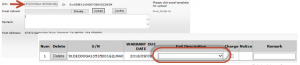
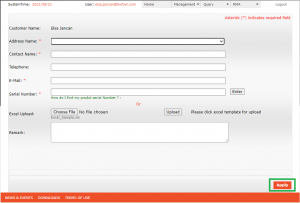
- Then click APPLY
- You will see below pop up if the RMA requested product is out of
standard warranty
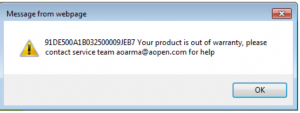
- You should contact AOPEN RMA team and provide necessary
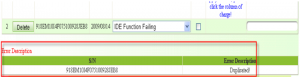
document to AOPEN to validate product warranty. - AOPEN RMA team will contact with you If
• The product serial number which you have entered does not exist
on RMA database
• It doesn’t show warranty date
• The product serial number which you have entered is incorrect
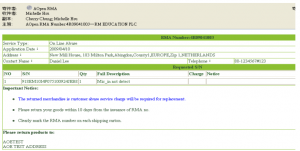
- A notification email as below sample will be forwarded to you
regarding the RMA#, shipping instruction and the shipping
address.
How to check product warranty
You can check product warranty date from product serial
number, by entering PN & S/N or By uploading excel file
Steps below are by using the PN & S/N
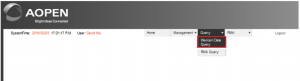
- Under the Query Tab, Select Warranty Date Query.
- Enter product serial number from barcode label
- Enter both P/N & S/N to check product warranty date (do
not include space or period). For example:91DED00GA1053500162LMA0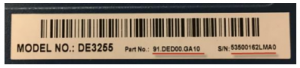

- After entering the SN input you should get the information below, it would show if the player is still under warranty.
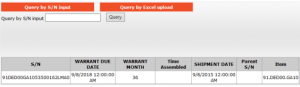
Steps below are by By uploading excel file
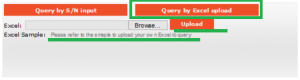
- Click on the Query by Excel upload

- You should have the option to Download excel sample file
- Once you created the file, now upload excel data
RMA Query
- Query and show requested RMA within the last six month
- You can only query you have requested RMA data

