

Our Knowledge Base Has Moved
The New Page landing page for the Knowledge Base is https://product.korbyt.com/help
The new version of this specific article can be found at: https://product.korbyt.com/help/articles/7705598-desktop-inview-user-experience
Please update any of your bookmarks to the new Knowledge Base
For assistance on using the new Knowledge Base, we have a Welcome to the New Korbyt Knowledge Base guide
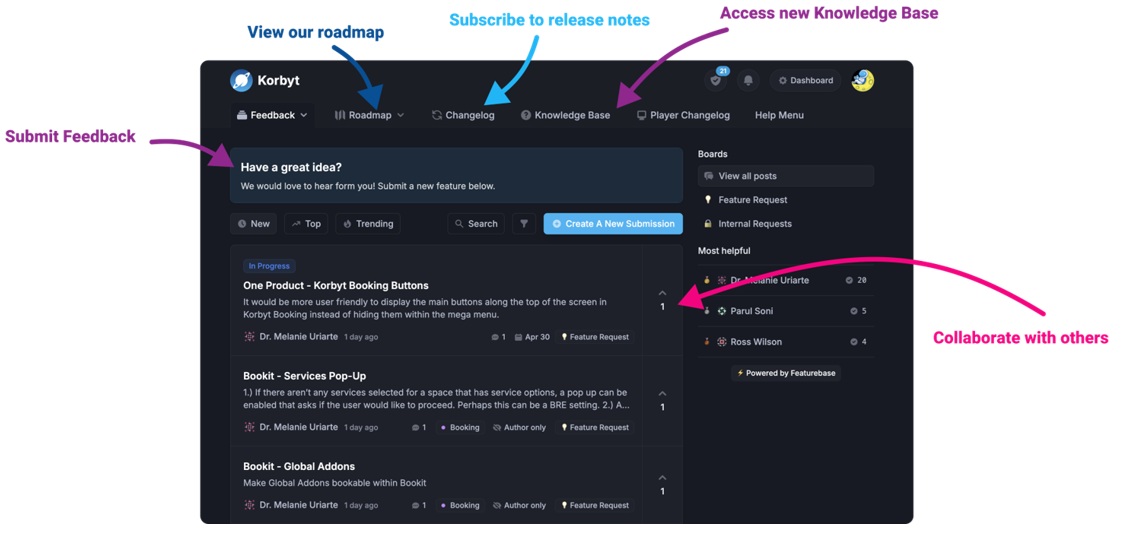
The new Korbyt Product Page also has sections for submitting feedback on system improvements, a view of our Roadmap of upcoming enhancements, and a change log of all updates.
After reading this article, you will know the different options within the Korbyt Inview application.
- In the upper left hand corner there are the following buttons:
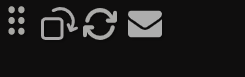
- The first button allows you to move the Inview by mouse clicking and hold.
- The second button allows you to change the orientation of the Korbyt Inview.
- The third bottom allows you to refresh the Inview, if changes to the Inview messages were made.
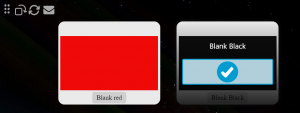
- The Last button allows you to select which message to display that is available to audiences you are a part of.
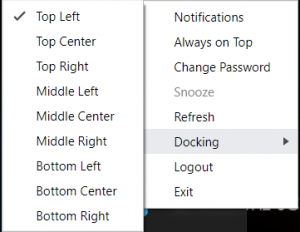
- By right clicking on the Korbyt Inview icon, in your task bar, you get the following options”
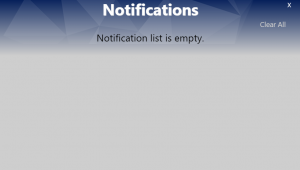
- ‘Notifications’ allow you to see Notifications sent to your audience.
- ‘Always on Top’ allows Korbyt Inview to be on top of all applications open.
- ‘Change Password’ allows you to change your Korbyt Inview Employee password.
- ‘Snooze’ allows you to hide Korbyt Inview for five minutes.
- ‘Refresh’ allows you to refresh your Korbyt Inview to view changes to messages to your audience.
- ‘Docking’ allows you to change the default location where Korbyt Inview is located on the end user’s screen.
- ‘Logout’ allows the end user to logout of Korbyt Inview.
- ‘Exit’ Allows the end user to exit the Korbyt Inview application.
- ‘Notifications’ allow you to see Notifications sent to your audience.
